Hide private info
Hide sensitive info in screenshots
Drag a box over an email, a customer name or a balance and choose how to cover it. The area is burned into the image, and the cleaned copy replaces the original on every scene that uses it — so nothing private ends up in your mockups, exports or share links.
Your screenshot is processed in your browser and never uploaded.
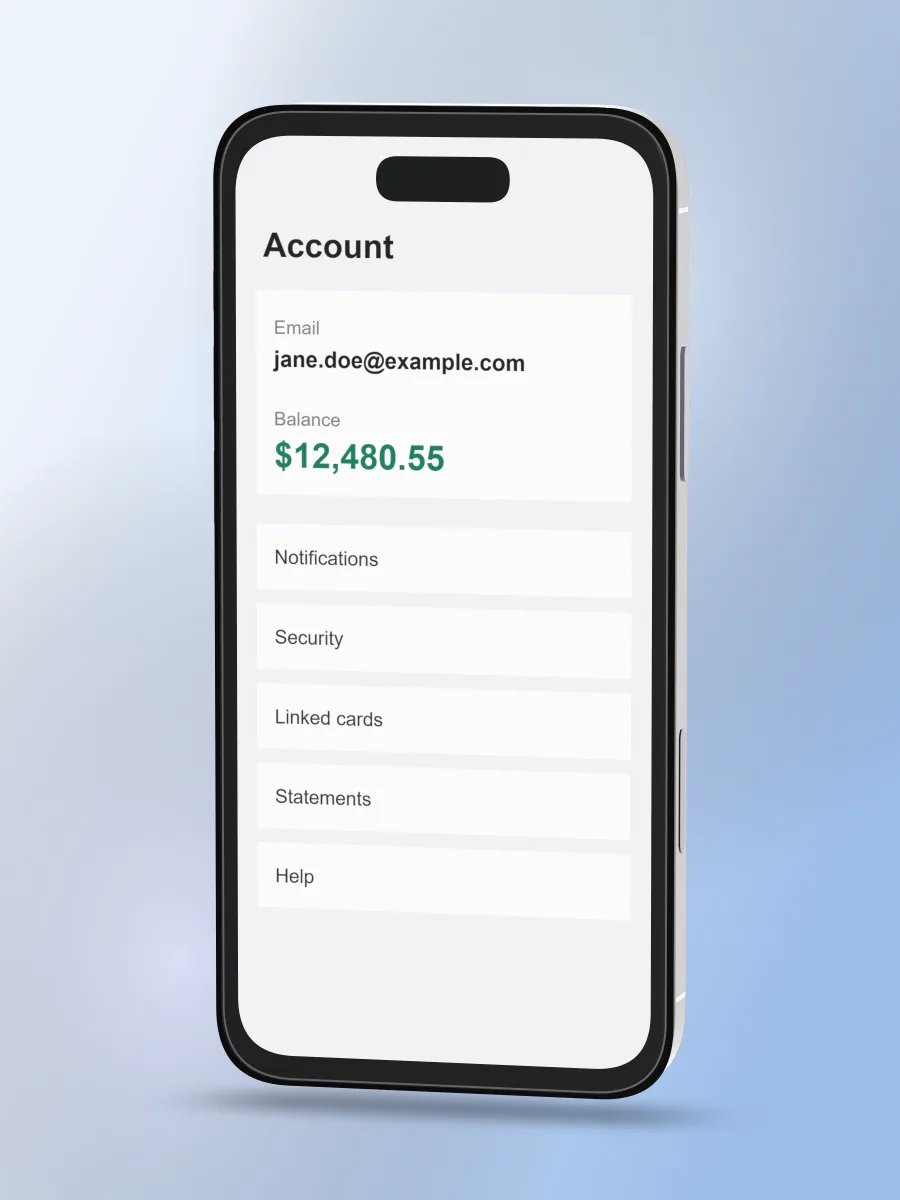
Before
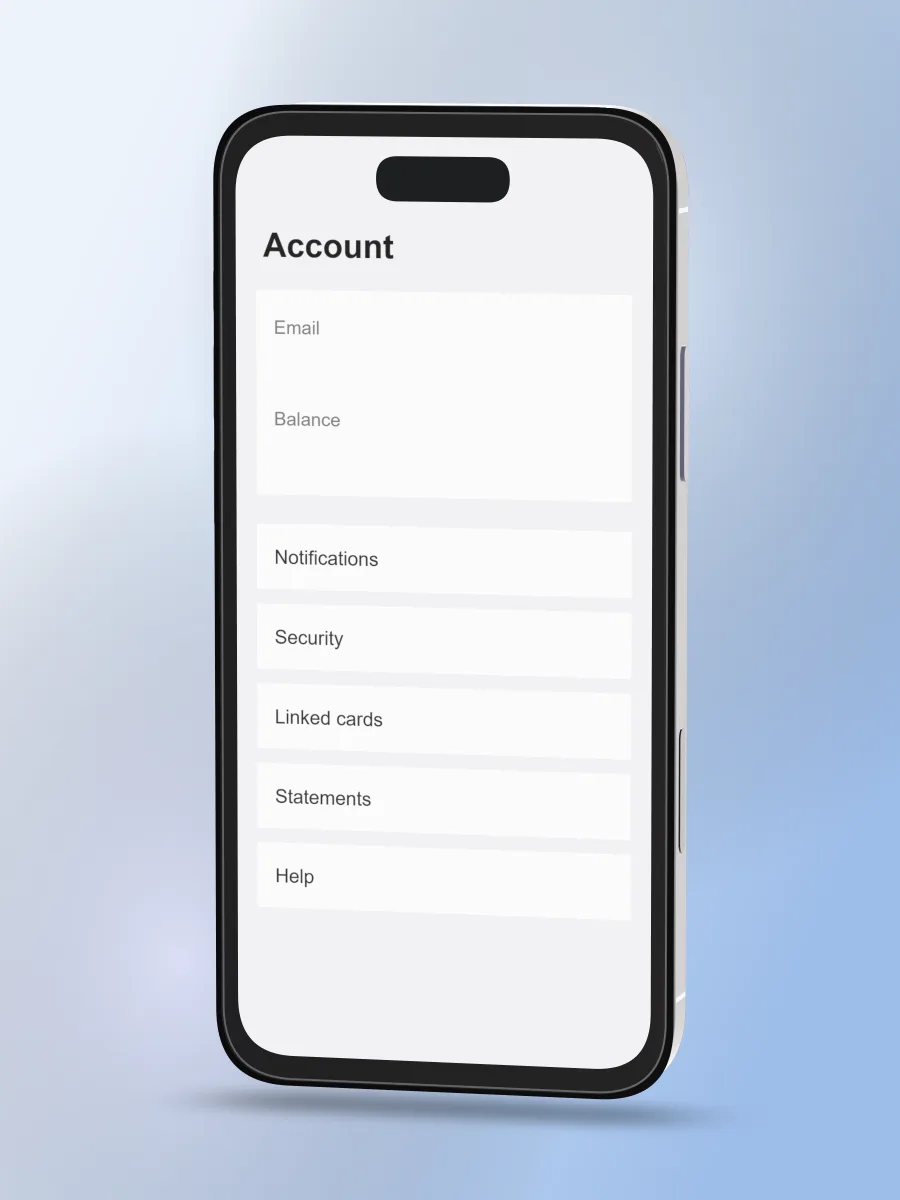
After
How it works
- 01
Upload a screenshot
Drop it in the editor; it lands on a 3D device.
- 02
Mark the details
Source → Hide private info. Drag over each detail and pick Erase, Bar, Pixelate or Blur.
- 03
Apply and share
The cleaned image replaces the original everywhere. Export or share as usual.
Four ways to cover
- Erase — fills the area with the surrounding color, as if the text was never there (opaque)
- Bar — a solid block of color (opaque)
- Pixelate — large blocks; text becomes unreadable
- Blur — a strong two-pass blur
Good to know
- Erase and Bar leave no pixels to recover. For passwords or card numbers, use one of those two.
- The original stays in the open tab’s memory so you can undo. It is never saved, exported or shared.
- When you drop a new version of the screen (Update screens), the same areas are covered again.
- Images only for now — not screen recordings.
Questions
Is the covering permanent?
Yes, in everything you export, save or share. Only the open tab keeps the original, for undo.
Can a blurred area be recovered?
Blur and pixelate use strong settings, but they keep some color. For anything critical, use Erase or Bar — they leave nothing behind.
Is my screenshot uploaded?
No. Everything happens in your browser.
More ways to use Mockuptop
- App Store screenshotsHeadline + 3D device, every store size in one ZIP
- App promo videoA 10–20 s launch video from your screenshots
- Portfolio mockupsLaptop + phone scenes for Dribbble and case studies
- Mockup templates12 ready-made looks, each a real render
- Screenshot size checkerCheck store sizes and alpha before you upload